Some quick context to get you started.
The DST is a prioritization reference for leadership during a disruption. This page covers what you are looking at and what to try first. Everything below takes about two minutes to read.
Four terms make the whole tool make sense.
Everything in the DST is built on these. If you read nothing else on this page, read these.
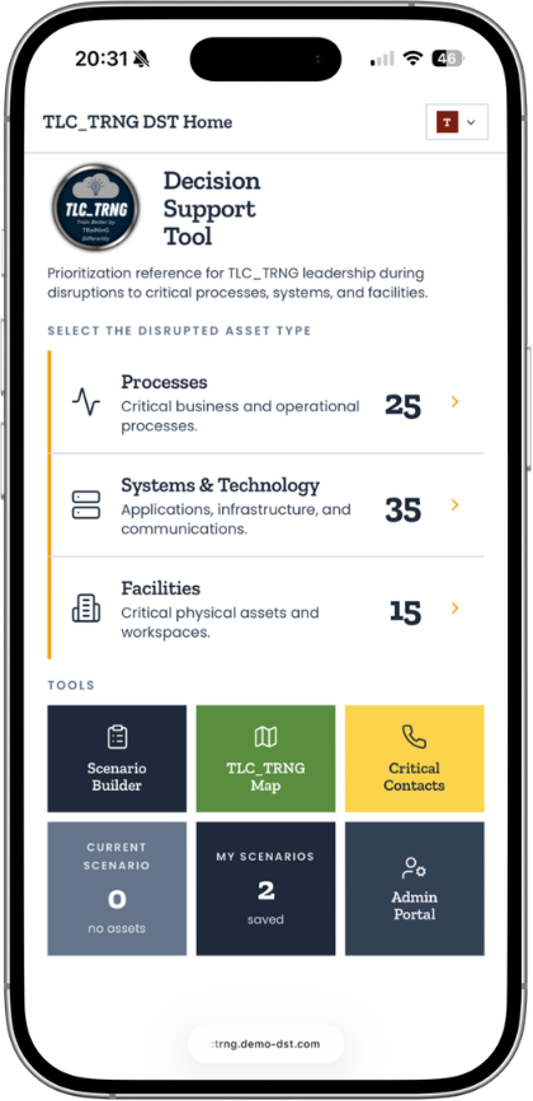
Critical Assets
An organization's Processes, Systems, and Facilities, categorized and prioritized across the organization. These are the three lists on the home screen.
Restoration Score
A formula-based score combining operational category, priority within that category, and the number of downstream dependencies. Higher score, addressed first.
Dependencies
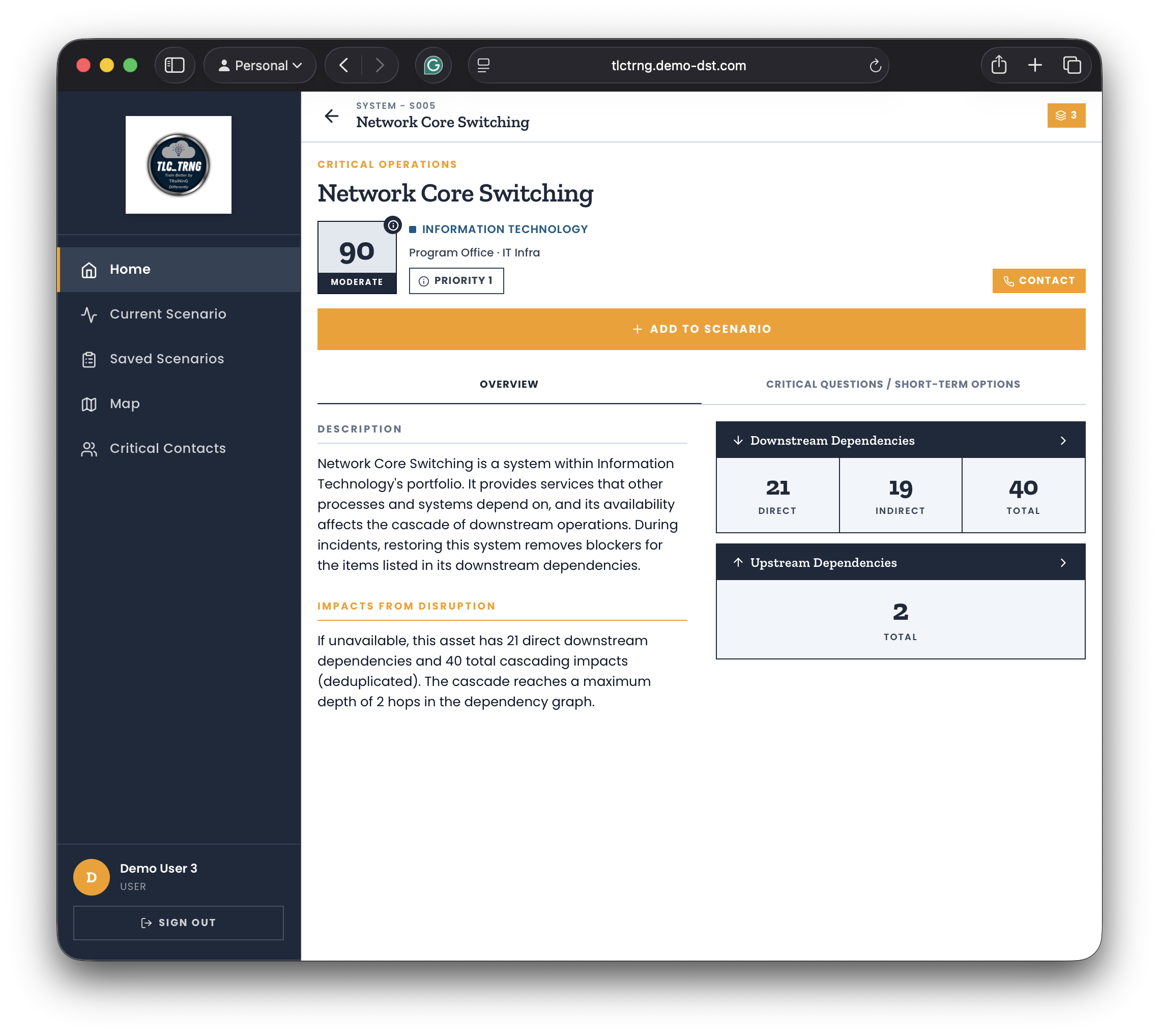
Direct Downstream is what breaks immediately when this asset goes down. Total Cascade is the full multi-level list of everything downstream of it.
Scenario
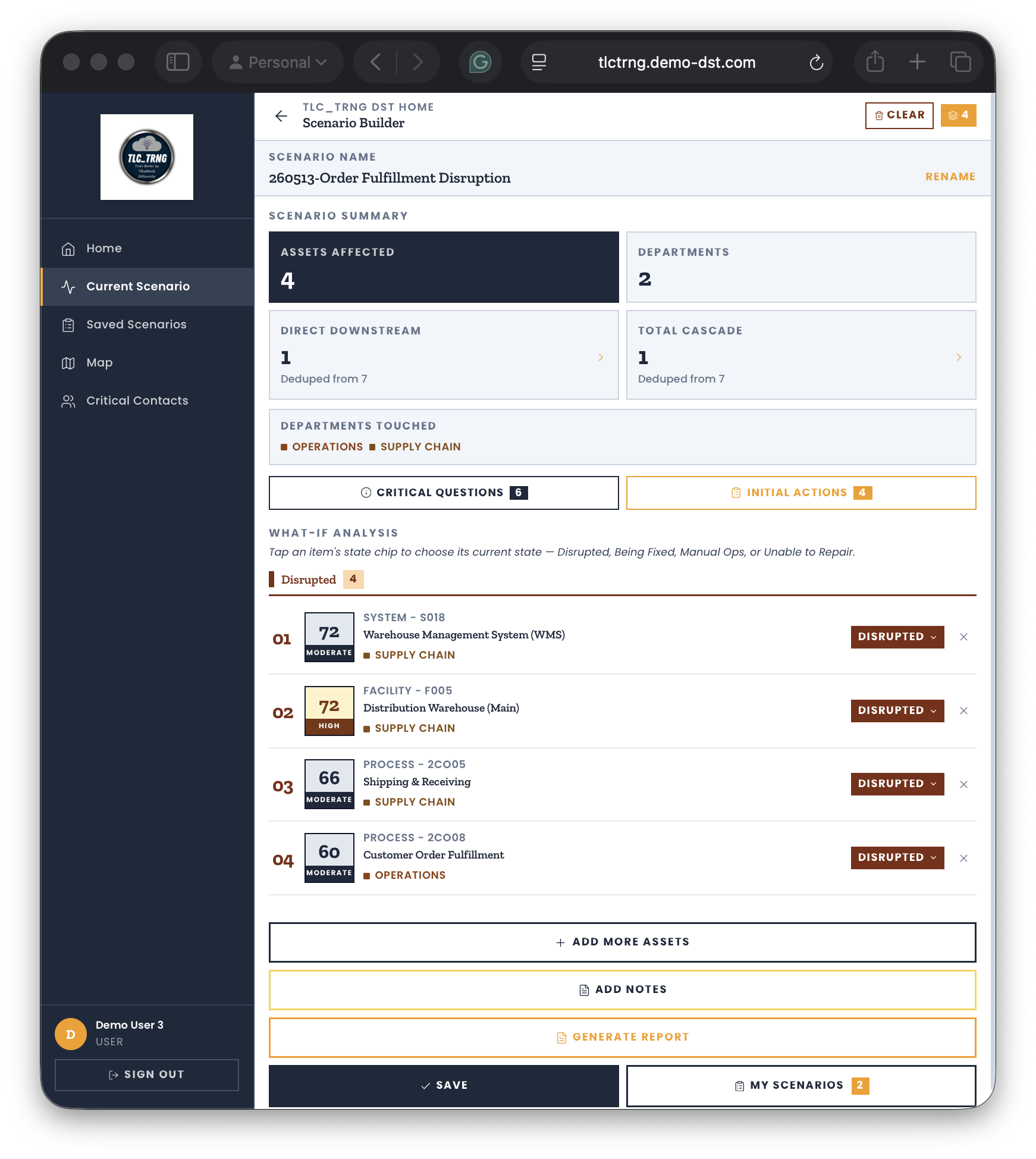
A set of disrupted assets compared side by side, ranked by Restoration Score, so you can see where to apply effort first. Scenarios can be saved, annotated, and exported as a report.
Try these three things, in this order.
Understand one asset
From the home screen, open Systems & Technology and pick anything near the top. Read its Impact Statement, then click the dependency block to see what falls over with it.
Build a scenario
Add that asset to a scenario, then use Multi-Select on a list to add three or four more. Watch how the ranking and the cascade change as you add each one.
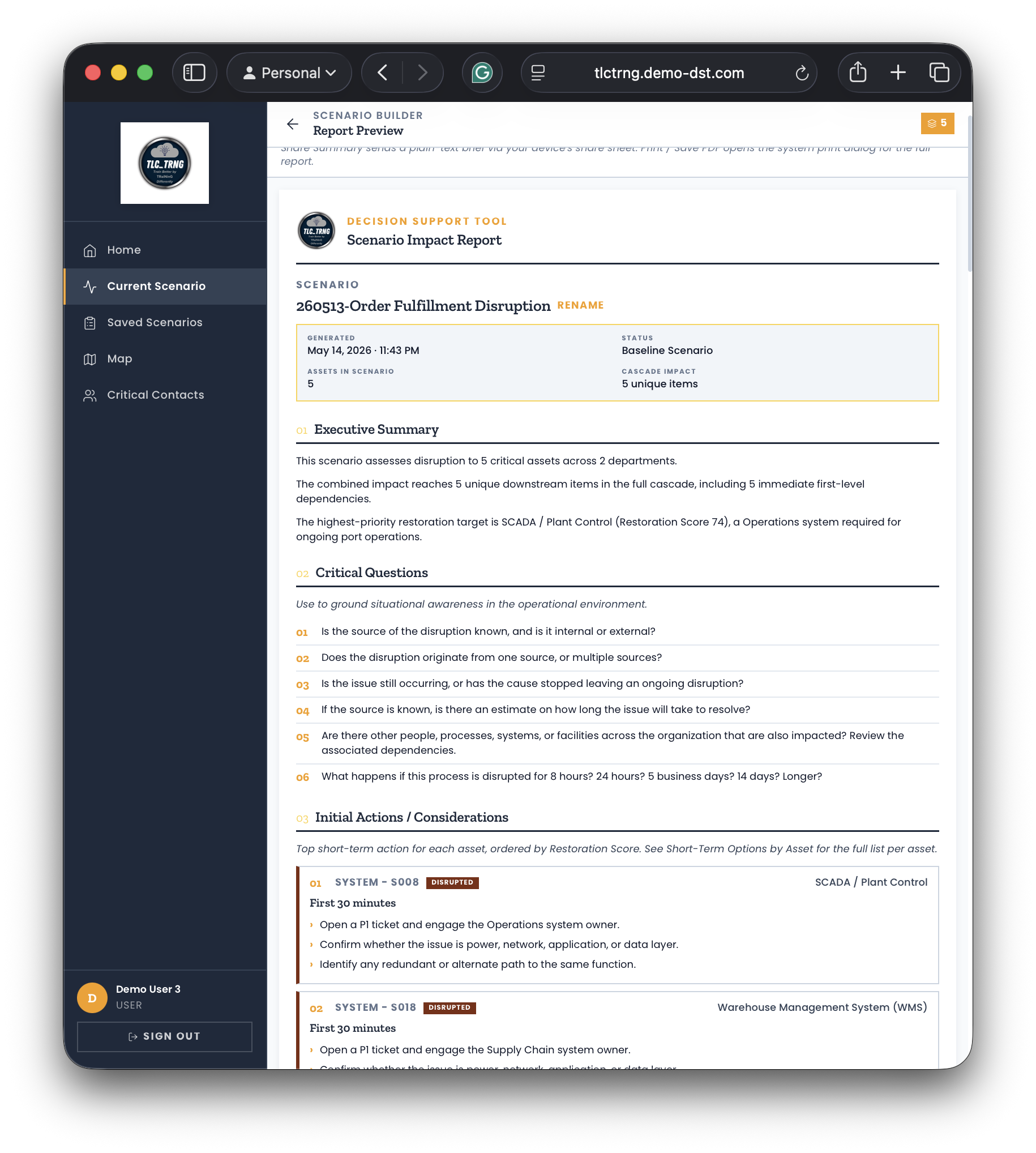
Generate the report
From the scenario, generate a report. It leads with Critical Questions and Initial Actions, then the full detail. This is the artifact a duty officer actually hands to leadership.
If you have time for a fourth: open Map / Weather, draw a radius around an incident point, and add the facilities it captures straight into your scenario.
Want the full walkthrough?
The complete guide covers every screen with annotated captures: home, asset lists, asset details, scenarios, reports, and the map. It is also linked inside the tool.
Complete this quick form to gain access.
Don't worry, you aren't signing up for a mailing list. This is just so we know who has accessed the Demo DST.
Sign in with either demo account.
The DST is built mobile-first and adjusts to desktop. Try it on your phone if you want to see how it behaves in the field.
Ready to operationalize your own plans?
A real build uses your assets, your dependencies, and your contacts. Feedback on the demo is welcome too.
 © 2026 TLC_TRNG, LLC